


DocsGetting Started
Getting Started
Follow these steps to create your account, start a room, invite your team, and join meetings in the spatial workspace.
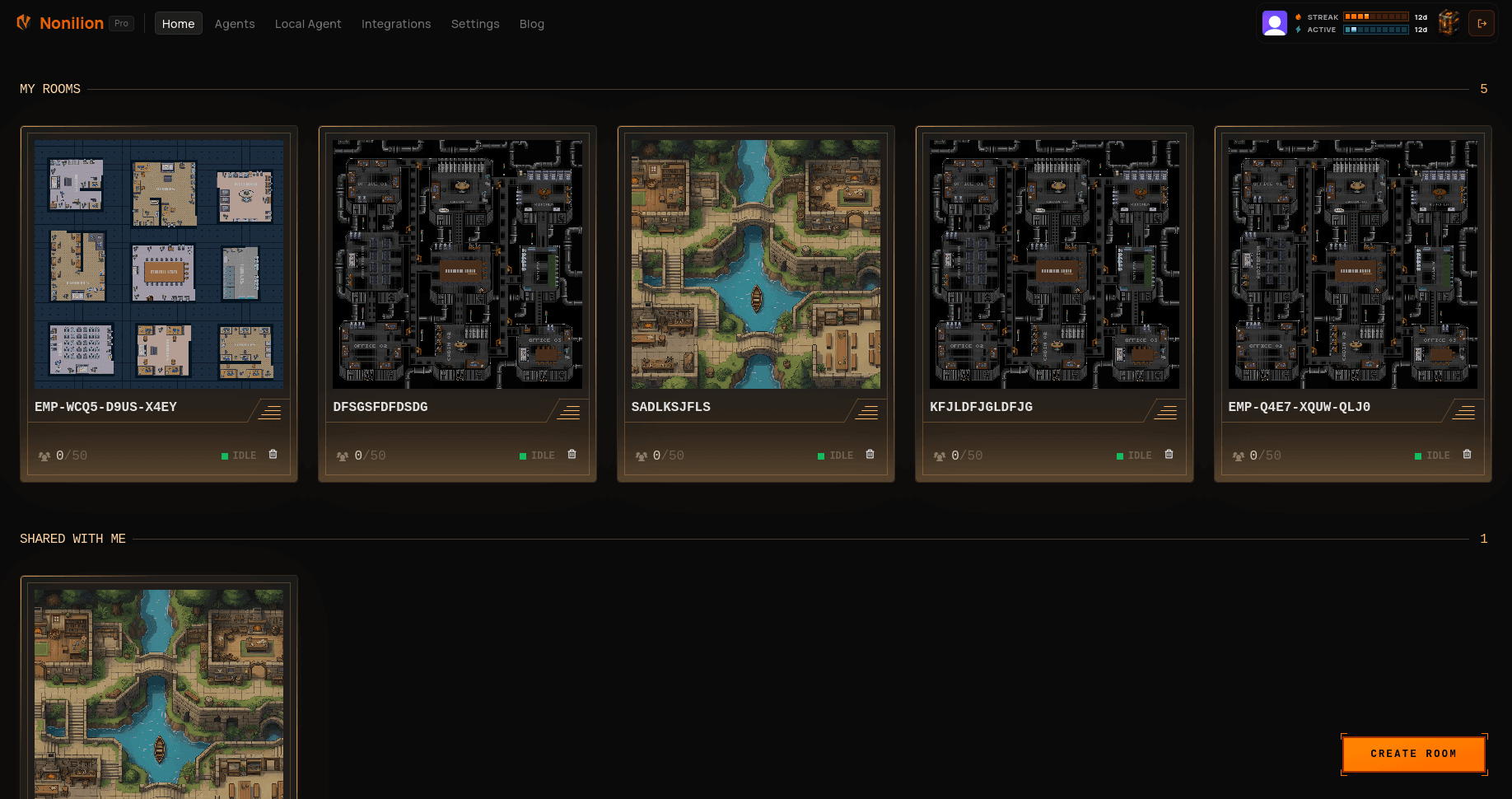
1. Create an account
Start by signing up with your email or a social provider through Clerk authentication.
- 1Visit nonilion.com/sign-up
- 2Enter your email and create a password
- 3Or sign up with Google or GitHub
- 4Verify your email address
- 5Complete your profile
Tip: Add a profile picture so teammates can recognize you faster in the virtual space.
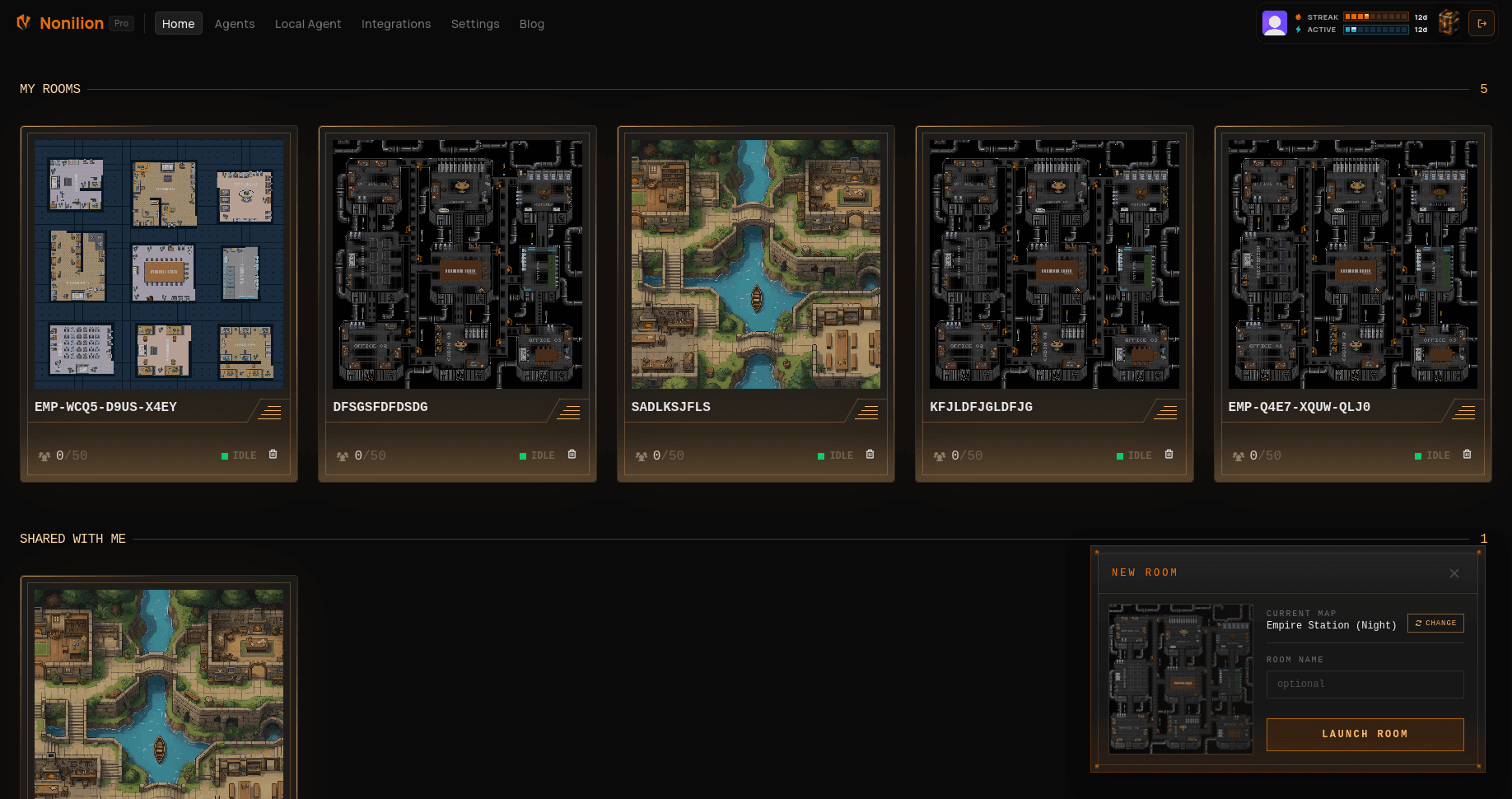
2. Create your first room
Rooms are the virtual spaces where meetings happen, and each one can be tailored to the session.
- 1Open the Dashboard after logging in
- 2Click "Create New Room"
- 3Name the room for your meeting
- 4Choose an environment theme
- 5Configure privacy and features
Tip: Pick an environment that fits the meeting type, from casual catch-ups to formal sessions.
3. Invite participants
Share the room with teammates using links, email, calendar invites, or a QR code.
- 1Copy and share the room link
- 2Send invitations by email
- 3Add the room to Google Calendar
- 4Generate a QR code for fast access
Tip: For recurring meetings, keep one room link and reuse it each time.
4. Join your meeting
When the meeting starts, enter the room and check your audio and video before you begin.
- 1Log in to your Nonilion account
- 2Open the Dashboard
- 3Click "Join" on the room
- 4Allow microphone and camera access
- 5Select "Enter Room"
Tip: Use the pre-join test to confirm audio and video settings before important calls.